Getting started with IIS
A practical guide to enabling IIS on Windows 11 and verifying that the installation worked.
Internet Information Services, usually called IIS, is Microsoft’s web server for Windows. It can host static sites, APIs, and server-side applications, and it integrates naturally with the rest of the Windows ecosystem.
If you are just trying to get a local Windows machine ready for basic web hosting or experimentation, this guide covers the shortest path.
What this guide covers
- enabling IIS from the Windows Features dialog
- enabling IIS from PowerShell
- opening IIS Manager
- checking that the installation completed successfully
Method 1: Turn IIS on from Control Panel
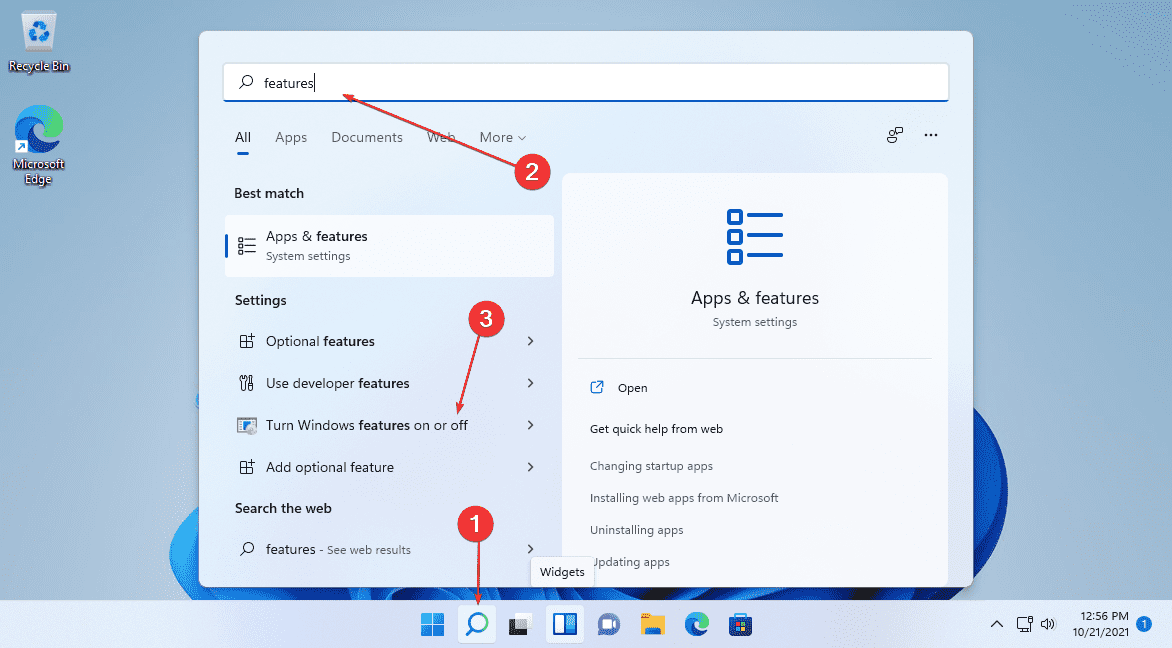
1. Open Windows Features
Search for Turn Windows features on or off from the Start menu.
2. Enable IIS
Enable Internet Information Services. For a simple local setup, the default IIS selection is usually enough to get started.
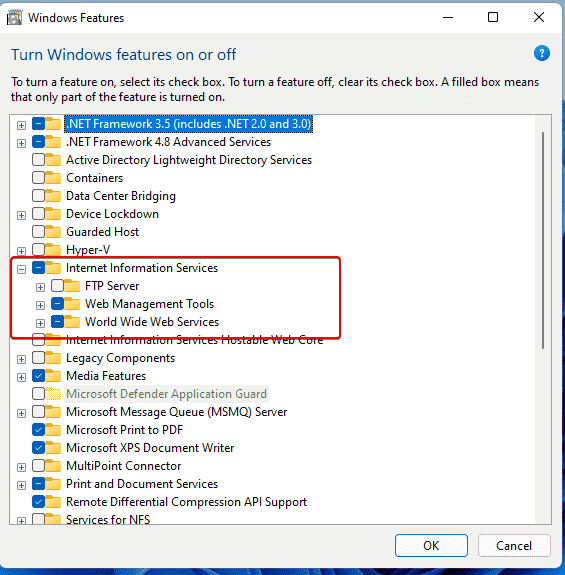
Windows will install the selected components and may ask you to restart the machine.
3. Open IIS Manager
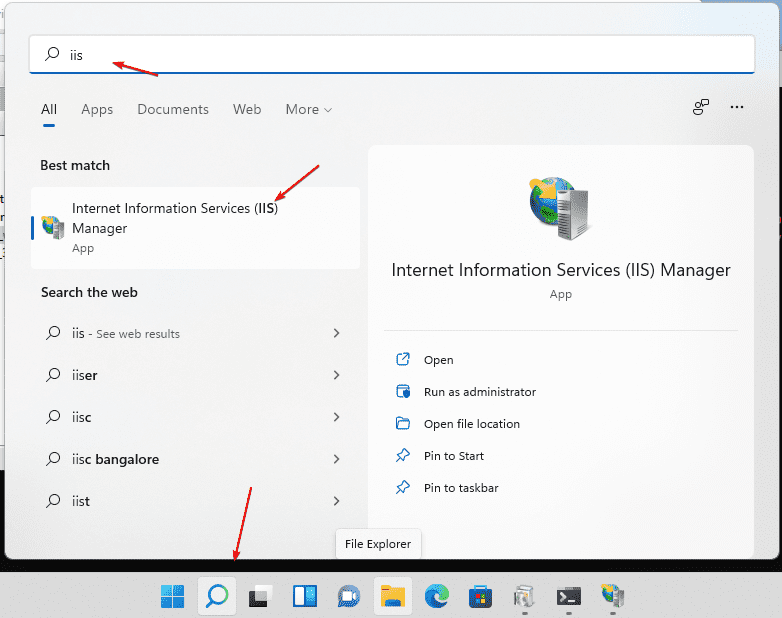
After installation, search for IIS and launch Internet Information Services (IIS) Manager.
4. Confirm the installation
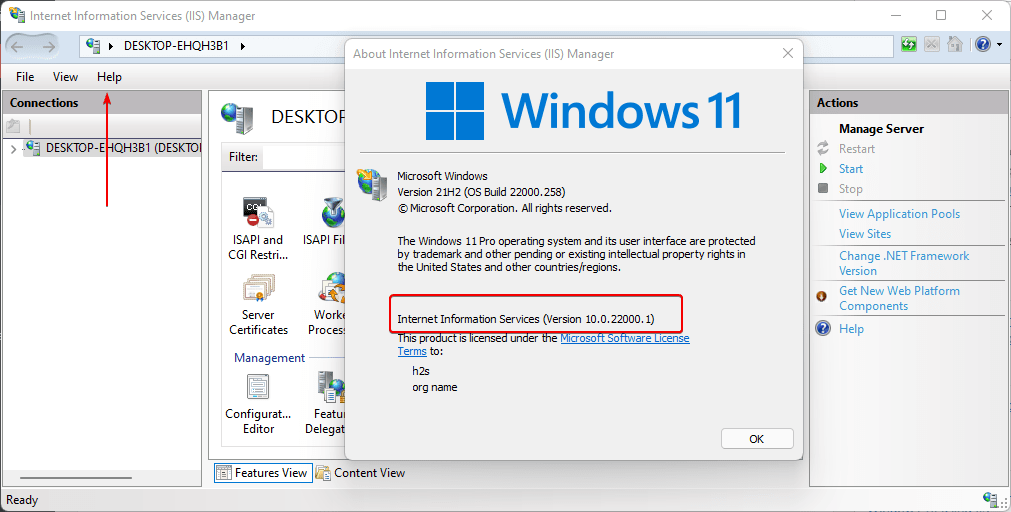
Inside IIS Manager, use the menu to open the About dialog and confirm that IIS is installed correctly.
Method 2: Install IIS from PowerShell
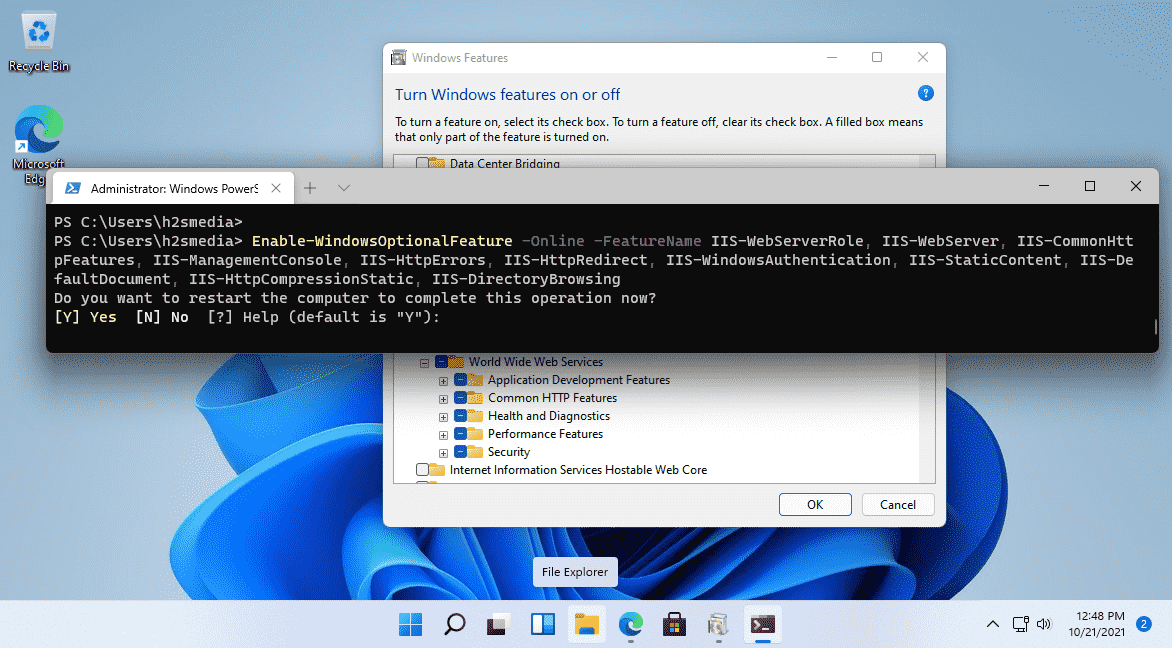
If you prefer the terminal, you can enable IIS from an elevated PowerShell window.
1
Enable-WindowsOptionalFeature -Online -FeatureName IIS-WebServerRole, IIS-WebServer, IIS-CommonHttpFeatures, IIS-ManagementConsole, IIS-HttpErrors, IIS-HttpRedirect, IIS-WindowsAuthentication, IIS-StaticContent, IIS-DefaultDocument, IIS-HttpCompressionStatic, IIS-DirectoryBrowsing
Restart if Windows prompts you to do so. Once the machine comes back up, open IIS Manager and verify that the server is available.
If you later want to turn IIS off again, use:
1
Disable-WindowsOptionalFeature -Online -FeatureName IIS-WebServerRole, IIS-WebServer
Quick verification checklist
After installation, check the following:
- IIS Manager opens without errors
- the Sites node appears in the left navigation
- the default web site exists
http://localhost/loads in a browser
When to use IIS
IIS is a good fit when you are already on Windows and want a native web server for local hosting, internal tools, ASP.NET applications, or quick staging setups. If your workflow is Windows-heavy, IIS is often the most direct starting point.
Related reading
If you are setting up a local development machine, these posts pair well with IIS: